
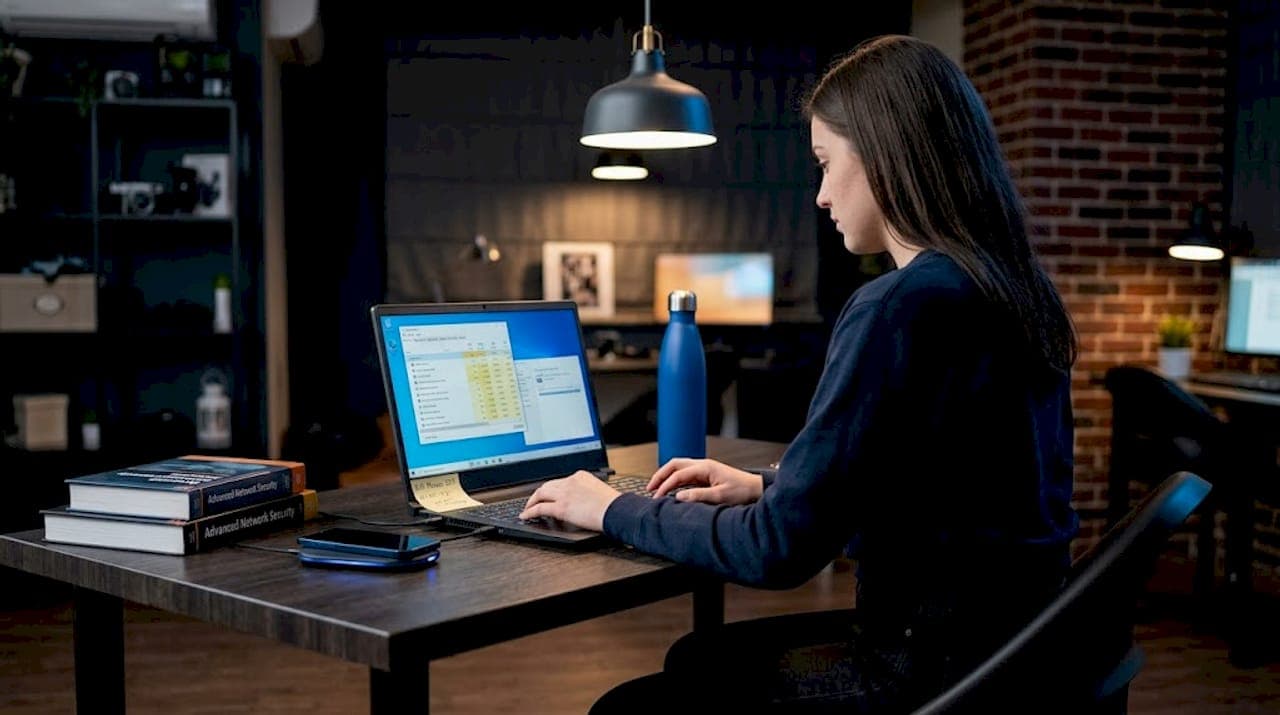
If you've ever stared at your Task Manager before an online exam wondering what the proctor can actually see, you're not alone. Understanding what is Windows process monitoring exam context means knowing the difference between what monitoring tools technically can do and what proctors actually watch during your test. These are two very different things, and confusing them causes unnecessary stress. This article breaks down how Windows process monitoring tools work, how remote proctoring really operates, and what you should do before exam day to avoid surprises.
Table of Contents
- Key takeaways
- What is Windows process monitoring in the exam context
- How proctoring actually works vs. Windows monitoring
- Common student mistakes with monitoring tools during exams
- Practical steps to prepare your Windows system for a proctored exam
- Windows monitoring tools vs. exam proctoring: a side-by-side view
- My take on the process monitoring anxiety problem
- How Unsafeexambrowser supports your exam environment
- FAQ
Key takeaways
| Point | Details |
|---|---|
| Proctors watch behavior, not processes | Remote proctors focus on your webcam, screen, and environment rather than Windows process details. |
| Monitoring tools can cause problems | Running advanced tools like ProcMon during an exam can strain your system and trigger false flags. |
| Preparation beats paranoia | Running system checks 48 hours before your exam prevents most technical issues on test day. |
| Secure browsers restrict your system | Exam software blocks unauthorized apps and limits what processes can run during the test. |
| Know the tools, then leave them alone | Understanding Windows monitoring tools helps you prepare, not monitor yourself during the exam. |
What is Windows process monitoring in the exam context
Windows process monitoring refers to tracking what programs, services, and system activities are running on your machine at any given time. Three tools come up most often when students research this topic before an exam.
Task Manager is the most familiar. You open it with Ctrl+Shift+Esc and see a list of running apps and background processes, along with CPU, memory, disk, and network usage. It lets you end tasks and check which programs are consuming resources. However, Task Manager cannot track parent processes and lacks advanced diagnostic features, making it useful for quick checks but limited for deep analysis.
Performance Monitor goes a step further. It is a built-in Windows MMC snap-in that tracks real-time system metrics and can log data over time using data collector sets. The key limitation: Performance Monitor cannot access kernel-level information, so it cannot detect root-cause system-wide issues the way some students assume it can.
Process Monitor (ProcMon) from Microsoft Sysinternals is the most powerful of the three. ProcMon shows real-time file system, Registry, and process and thread activity. It combines the old Filemon and Regmon tools and captures session IDs, user IDs, and command-line details. This is a diagnostic tool used by IT professionals and security researchers, not a standard student utility.
Here is a quick comparison of these three tools:
| Tool | What it monitors | Kernel access | Typical use case |
|---|---|---|---|
| Task Manager | Processes, CPU, memory, disk | No | Quick resource checks |
| Performance Monitor | Real-time metrics, data logs | No | Performance trending |
| ProcMon (Sysinternals) | File system, Registry, threads | Partial | Advanced diagnostics |
Pro Tip: Understanding these tools helps you prepare your system before exam day. During the exam itself, you should not need any of them running.
How proctoring actually works vs. Windows monitoring
This is where most student confusion lives. You might picture a proctor watching a live feed of your Task Manager or scanning your process list for suspicious activity. That is not how it works.
Remote proctored exams use continuous live webcam monitoring and screen sharing. Proctors watch your face, your screen content, and your physical environment. They look for behavioral signals: looking away repeatedly, talking, having another person in the room, or switching windows.
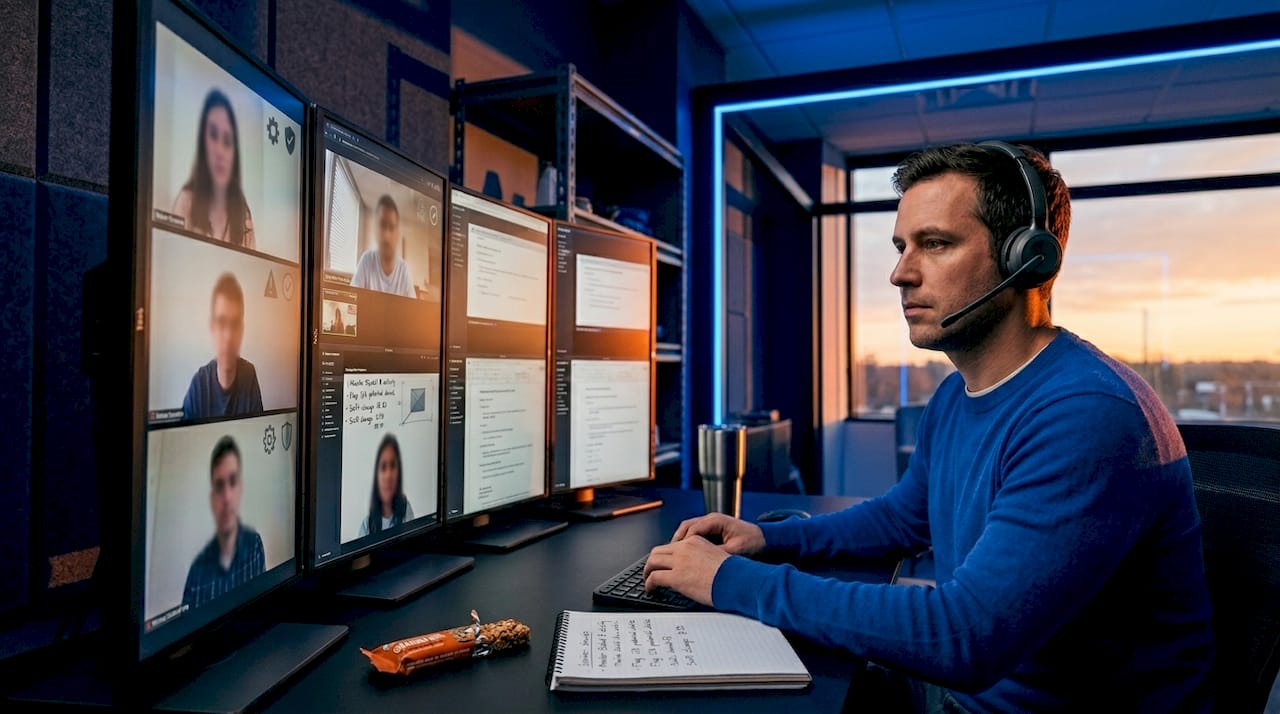
What proctors do not do is dig into your Windows process tree or analyze your CPU usage graph. Proctors monitor exam integrity primarily through observing the environment and screen content, not through kernel or detailed process monitoring. The focus is behavioral compliance, not system telemetry.
The actual technical enforcement happens at the software level through the secure exam browser. That browser locks your system into a restricted state:
- It blocks access to other applications while the exam runs.
- It disables standard keyboard shortcuts so you cannot switch windows freely.
- It may prevent screen recording or screenshot tools from functioning.
- It limits which processes can interact with the exam session.
Secure exam browsers block additional applications and limit system interactions during the test. So the "monitoring" that matters most is not Windows process monitoring at all. It is the combination of a locked browser environment and a human proctor watching your behavior through a camera.
Pro Tip: If you want to understand what your exam's secure browser restricts, read the exam provider's technical requirements page before test day. It will list exactly what is and is not allowed.
Common student mistakes with monitoring tools during exams
Knowing that Windows process monitoring tools exist does not mean you should use them during your exam. Several real pitfalls come from students trying to "stay on top of" their system while testing.
Running ProcMon during a proctored exam is one of the worst things you can do technically. Logging millions of events can degrade performance and cause latency that impacts bandwidth-sensitive exams. ProcMon generates enormous disk I/O, which can slow your internet connection and cause your exam session to lag or disconnect.
Even running legitimate tools can backfire in another way. Windows monitoring tools create background activity that might be flagged by secure exam software, even when the tools themselves are harmless. Secure exam sandboxes have strict process environment policies, and an unexpected app launch or window switch can trigger a false positive that interrupts your session.
Here are the most common mistakes to avoid:
- Opening Task Manager mid-exam to check performance. Even this basic tool can trigger alerts in some proctored environments.
- Installing ProcMon or similar tools the night before the exam out of curiosity, then forgetting to close them.
- Running antivirus scans or system updates in the background, which create process activity that competes with your exam connection.
- Switching windows to check a monitoring tool, which a proctor watching your screen will flag as suspicious behavior.
Pro Tip: Close every non-essential app before you launch your exam. That means browser tabs, messaging apps, cloud sync tools, and anything else running in your system tray.
Practical steps to prepare your Windows system for a proctored exam
Preparation is the real answer to process monitoring anxiety. If you set up your system correctly in advance, you will not need to think about any of this on exam day.
-
Run a full system check 48 hours before your exam. System and network checks at least 48 hours before the exam give you time to fix any compatibility issues with the exam software. Do not wait until the morning of the test.
-
Install and test the exam's secure browser early. Download it, run a practice session if one is available, and confirm it launches without conflicts. Check the first-time user tips from Unsafeexambrowser if you are using their platform for the first time.
-
Close all background applications before starting. Go through your system tray and shut down cloud storage sync, messaging apps, music players, and any monitoring tools you may have open. Restart your machine if needed to clear the slate.
-
Disable automatic Windows updates for the exam window. An update that kicks off mid-exam will consume bandwidth and CPU, and could even force a restart. Pause updates through Windows Settings before you begin.
-
Check your internet connection stability. Use a wired connection if possible. Run a speed test and confirm your upload and download speeds meet the exam provider's minimum requirements.
-
Prepare your physical environment. Clear your desk, remove extra monitors if the exam requires it, and make sure your room is quiet and well-lit. Remember: live proctoring emphasizes environment control and human oversight more than deep technical monitoring.
Pro Tip: Do a full dry run the day before. Launch the exam software, sit at your desk in exam conditions, and time yourself going through the setup. This removes almost all exam-day surprises.
Windows monitoring tools vs. exam proctoring: a side-by-side view
It helps to see these two systems compared directly so you know exactly what belongs to which category.
| Aspect | Windows process monitoring tools | Exam proctoring surveillance |
|---|---|---|
| What is observed | CPU, memory, file system, Registry, threads | Webcam feed, screen content, room environment |
| Who controls it | You (the student) | Exam provider and proctor |
| Runs during exam | Should not be running | Always active during the session |
| Can flag behavior | No direct flagging | Yes, flags suspicious behavior to proctor |
| Student access | Full access outside exam | Restricted by secure browser during exam |
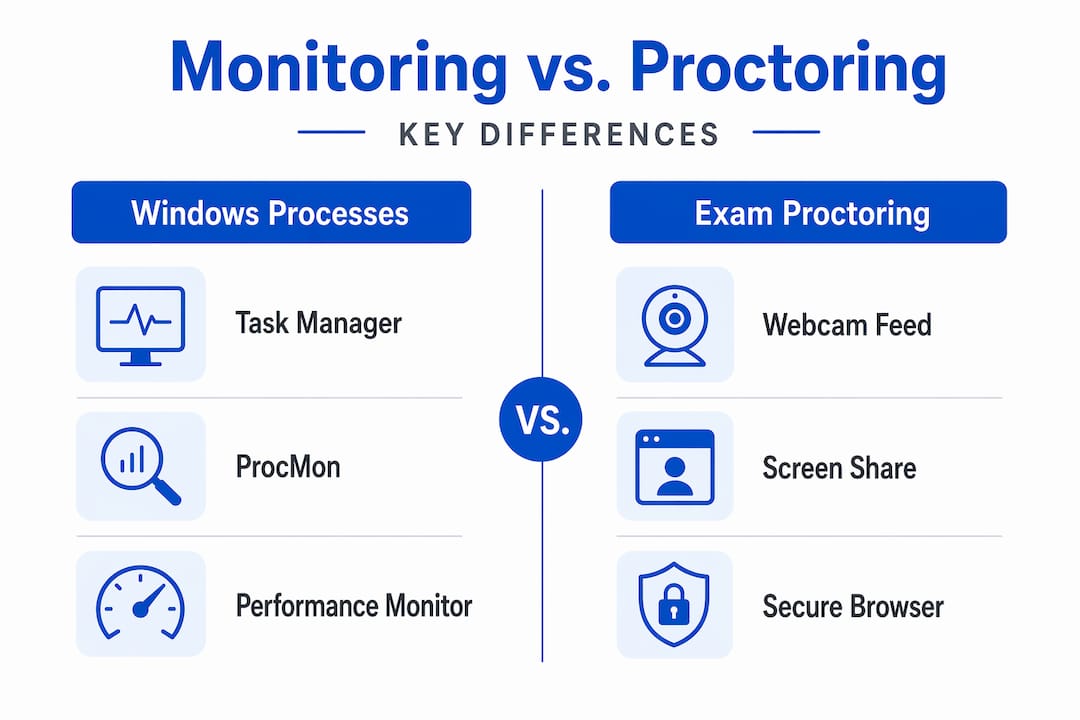
The key takeaway from this comparison: you control Windows monitoring tools, and they are meant for your own diagnostics. Proctoring surveillance is controlled by the exam provider, and it focuses on what you do, not what your CPU is doing.
What you can control before the exam:
- Which apps are running when you launch the exam software.
- Whether your system is updated, stable, and free of resource-heavy background tasks.
- Your physical environment and behavior during the session.
What you cannot control, and do not need to worry about:
- Whether the proctor can see your process list (they cannot, in any meaningful way).
- Whether Performance Monitor is running silently (it is not, unless you opened it).
My take on the process monitoring anxiety problem
I've seen this pattern repeat with every new wave of online exams: students spend hours researching what proctors can "see" in their system, convinced that some kernel-level surveillance tool is watching their every process. What I've found, after looking at how proctoring actually works, is that this anxiety is almost entirely misplaced.
The real monitoring is simpler and more human than students expect. A proctor is watching your face and your screen. They are not analyzing your process tree. What I've learned is that the students who have the smoothest exam experiences are the ones who prepared their environment, closed their background apps, and then stopped thinking about their system entirely.
My honest advice: spend 30 minutes the day before your exam doing a clean system setup and a test launch. After that, trust the process and focus on your content. The technical side of proctored exams is far less mysterious than the forums make it sound. You can read more about how exam privacy and security actually work if you want to understand the data side of things too.
— Mayar
How Unsafeexambrowser supports your exam environment
If you are taking a Windows-based proctored exam and want a browser that handles the technical restrictions so you do not have to think about them, Unsafeexambrowser is worth knowing about.
Unsafeexambrowser runs on Windows 10 and 11 (64-bit) and operates in a locked mode that disables standard shortcuts and restricts the system environment during your session. No reboot is required after installation. You enter your license key during setup and start your exam. It is that straightforward. Licensing starts at €8.99 for one month, with lifetime access available at €59.99. You can review the full licensing and pricing options or follow the setup guide to understand exactly how the software works before you commit.
FAQ
What does Windows process monitoring mean in an exam context?
Windows process monitoring in an exam context refers to using tools like Task Manager or ProcMon to observe system activity on your Windows machine. During proctored exams, this is generally irrelevant to how proctors monitor you, since they focus on your webcam and screen rather than your process list.
Can a proctor see my running Windows processes?
No. Proctors monitor your webcam feed, screen content, and physical environment. They do not have access to your Windows process tree or system resource data.
Is it safe to run Task Manager during a proctored exam?
It is generally not recommended. Even opening Task Manager can trigger alerts in some secure exam environments, and switching windows is flagged as suspicious behavior by human proctors watching your screen.
How far in advance should I prepare my system for a proctored exam?
Run your system check and test the exam software at least 48 hours before your exam. This gives you enough time to resolve any compatibility issues or blocked tool conflicts before test day.
Does running ProcMon during an exam cause problems?
Yes. ProcMon logs millions of file system and Registry events, which creates significant disk I/O and can slow your system and internet connection. It can also trigger false positives in secure exam software due to its background activity.