
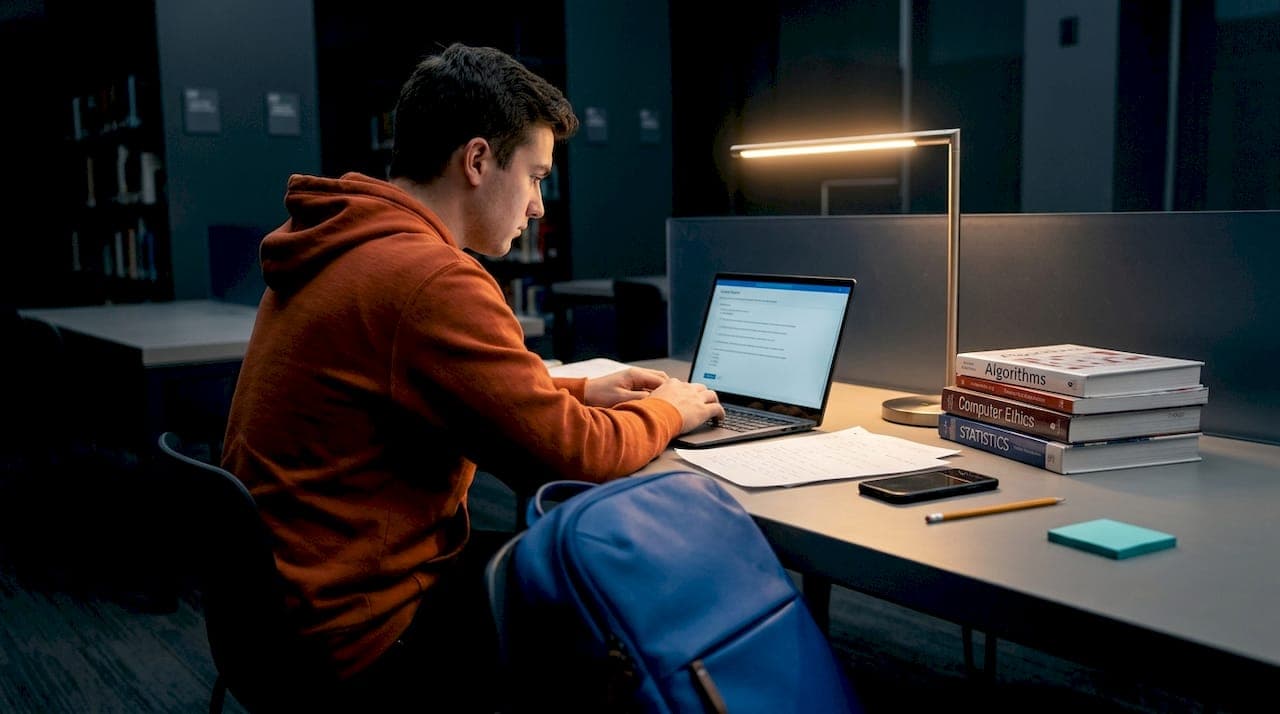
If you've ever clicked your Windows taskbar during a proctored exam and nothing happened, you already know the frustration. Taskbar access locked exam mode is not a glitch. It's a deliberate design choice built into exam browsers like LockDown Browser and Safe Exam Browser. These tools are configured by your institution to prevent app switching, copy-pasting, and any outside access during testing. This guide explains exactly why that happens, what options you legitimately have, and how to prepare so you're not caught off guard mid-exam.
Table of Contents
- Key takeaways
- How taskbar access locked exam mode actually works
- Preparing your device before a locked exam
- Accessing permitted functions during a locked exam
- Troubleshooting when taskbar behavior seems wrong
- What happens to your taskbar after the exam
- My take on taskbar restrictions in proctored exams
- How Unsafeexambrowser handles exam mode and taskbar control
- FAQ
Key takeaways
| Point | Details |
|---|---|
| Taskbar locking is intentional | Exam browsers disable taskbar access by design to prevent cheating, not because of a software error. |
| Configuration controls everything | Your institution sets what is visible or blocked, so taskbar behavior varies from one exam to the next. |
| Preparation prevents problems | Opening permitted apps before starting your exam is the only reliable way to access them during testing. |
| Visible does not mean functional | A taskbar that appears on screen may still block all app switching due to kiosk mode settings. |
| Legitimate exit paths exist | Quit passwords and exam submission are the only authorized ways to restore full taskbar access. |
How taskbar access locked exam mode actually works
Most students assume the taskbar is always available on a Windows machine. Exam browsers change that assumption completely. LockDown Browser locks students into the exam window until they submit or a quit password is entered. You cannot print, copy, paste, or switch to any other application. The taskbar is effectively frozen.
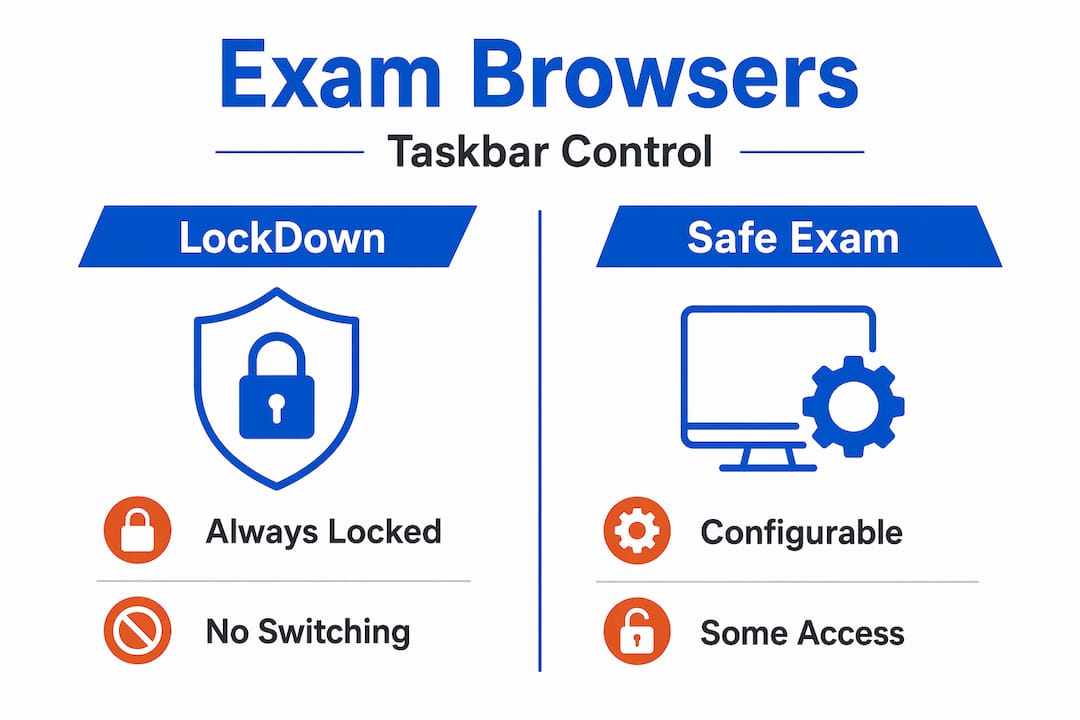
Safe Exam Browser works differently but achieves a similar result. It uses a "showTaskBar` configuration flag that administrators can toggle on or off. When your institution configures taskbar visibility, they decide whether you see a taskbar at all and whether any icons on it are interactive. Most institutions disable it entirely or limit it to a clock and approved tools.
Here is a quick comparison of how the two major exam browsers handle taskbar access:
| Feature | LockDown Browser | Safe Exam Browser |
|---|---|---|
| Taskbar visibility | Always hidden | Configurable by admin |
| App switching | Fully blocked | Blocked unless whitelisted |
| Quit method | Quit password or submission | Quit password or submission |
| Assistive tools | Permitted with pre-config | Permitted with pre-config |
One thing worth understanding is why the taskbar specifically gets targeted. It's the fastest route to switching applications on Windows. Block the taskbar and you block the most common cheating pathway. That's the logic, and it's straightforward.
Pro Tip: Ask your instructor before exam day whether any taskbar elements will be visible. Knowing this in advance helps you plan your workspace and avoid surprises.
Preparing your device before a locked exam
The single most effective thing you can do is prepare before you launch the exam browser. Once you're inside a locked session, your options shrink dramatically. Here's what to do beforehand:
- Install and update your exam browser. Run the installer fresh if it's been a while. Outdated versions can conflict with your institution's configuration and cause unexpected behavior.
- Open permitted apps before starting. Tools like Read&Write need to be launched before the exam begins. Once LockDown Browser is running, you cannot open new applications from the taskbar.
- Close everything else. Remote desktop tools, screen recorders, and overlay apps will cause your exam browser to abort on startup. This includes apps like AnyDesk, which can conflict with SEB lockdown and prevent the exam from initializing at all.
- Get your quit password in advance if applicable. If your instructor provides one for emergencies, save it somewhere accessible outside your computer, like on paper.
- Check for institutional exceptions. Some schools allow Zoom access during remote exams. Confirm this with your instructor and test it before exam day, not during.
Pro Tip: Run a practice exam session the day before your actual test. Most exam browsers offer a demo mode that mimics the locked environment so you can verify your setup works correctly.
Accessing permitted functions during a locked exam
Once you're inside a locked session, your options are limited by design. But there are still legitimate ways to work with the tools available to you.
- Use the exam browser's built-in tools. Many exam platforms include a calculator, highlighter, or annotation tool within the exam window itself. Check the toolbar at the top or bottom of the screen before assuming you have nothing to work with.
- Use assistive tools you opened before the session. If you launched Read&Write or a screen reader before starting, it should remain accessible in the background. You won't be able to switch to it via the taskbar, but keyboard shortcuts tied to those apps often still work.
- Request a quit password for emergencies. Quit passwords allow you to exit the locked browser with instructor permission. This is not a workaround. It's a built-in feature for situations where you genuinely need to leave the exam session.
- Use allowed key combinations. Some SEB configurations permit specific keyboard shortcuts for approved functions. Your institution's exam instructions should list any that apply.
- Contact your proctor in real time. If you're in a live proctored session and need access to something you believe is permitted, ask via the proctoring chat before attempting anything on your own.
The key principle here is that taskbar access during testing is controlled entirely at the configuration level. What you can and cannot do is set before you even open the exam. Working within those boundaries is the only safe approach.
Pro Tip: Write down the keyboard shortcuts for any assistive tools you plan to use. Taskbar access will be blocked, so muscle memory for shortcuts is your best friend during the exam.
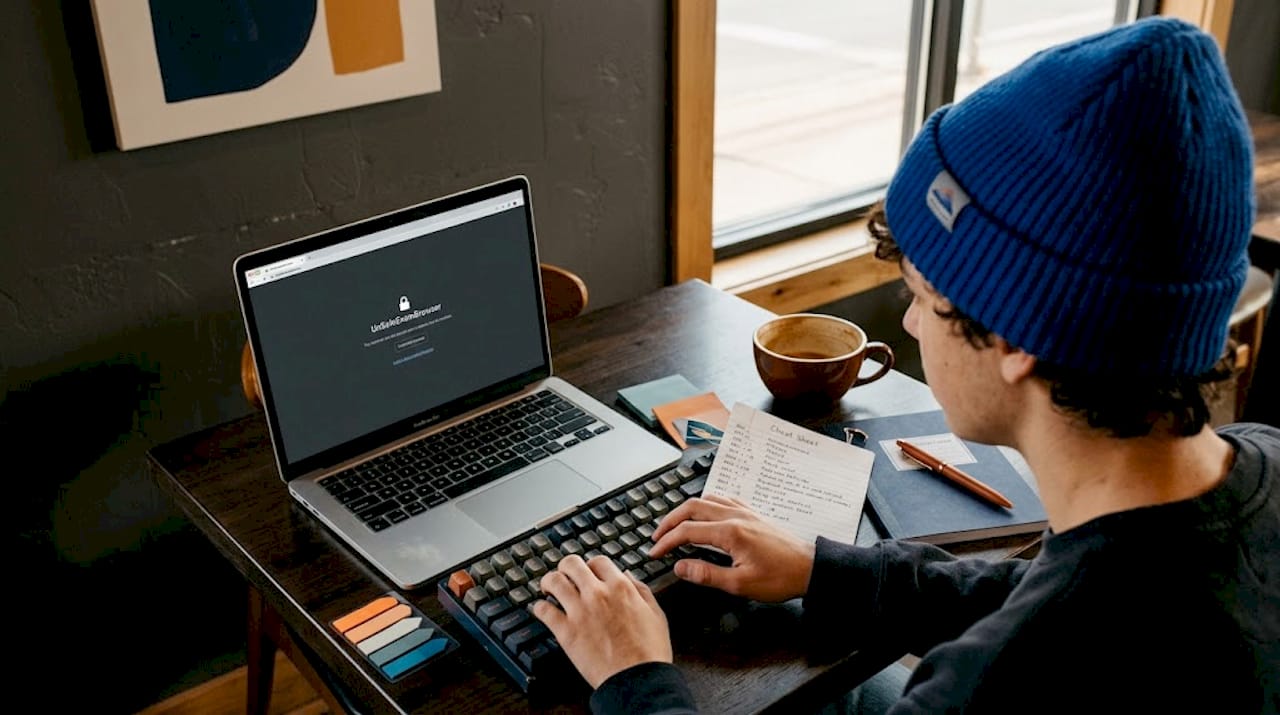
Troubleshooting when taskbar behavior seems wrong
Sometimes the taskbar behaves in confusing ways that aren't immediately obvious. Here are the most common issues and what they actually mean:
- The taskbar is visible but nothing responds. This is expected behavior in kiosk mode. A visible taskbar does not mean you can switch apps. The icons are displayed for informational purposes only, such as showing the time or battery level.
- Your exam browser won't start. Check for prohibited background processes. Remote access tools, screen capture software, and virtual machine apps are the most common culprits. Close them all and restart the exam browser.
- The taskbar reappears unexpectedly. This can happen due to a misconfiguration in the LMS or SEB settings. Report it to your proctor immediately rather than using it. Using an unintended opening is still a policy violation.
- You're stuck in the exam and cannot exit. Do not force-quit the browser. This can corrupt your submission. Contact your proctor or instructor for the quit password.
Attempting to bypass taskbar restrictions, even if you think the restriction is a mistake, can trigger an automatic violation flag in proctoring software. Always report unexpected access to your proctor before using it.
The most reassuring thing to know is that proper LMS and SEB configuration resolves the majority of taskbar issues. If something feels wrong, it's almost always a settings issue that your institution's IT team can fix quickly.
What happens to your taskbar after the exam
Once you submit your exam and the browser closes, your taskbar and full multitasking return immediately. Both LockDown Browser and Safe Exam Browser exit cleanly on supported systems, restoring your normal Windows environment without requiring a reboot.
A few things to be aware of after the session:
- Verify submission before closing. The exam browser typically shows a confirmation screen after submission. Wait for it. Closing the browser before submission is confirmed can result in lost work.
- Check for app data loss. On some systems, particularly iPads running multi-app mode, widgets and app states may not restore correctly after leaving the locked session. On Windows, this is rarely an issue.
- Reopen your apps manually. Any apps you had running before the exam may have been minimized or paused. Reopen them as needed.
- Do not force-quit the exam browser. Ending the process manually through Task Manager before submission is complete can flag your session for review and may result in a zero.
| Action | Recommended | Reason |
|---|---|---|
| Wait for submission confirmation | Yes | Prevents data loss and flags |
| Force-quit exam browser | No | Risks corrupting submission |
| Reopen apps manually | Yes | Normal restoration after exit |
| Report unexpected access | Yes | Protects you from violations |
The return to normal is fast and clean when you follow the proper exit process. The exam browser is designed to release control fully once it's done.
My take on taskbar restrictions in proctored exams
I've spent a lot of time working with proctored exam environments, and the number one frustration I hear from students is this: "I just wanted to check my notes, not cheat." I get it. The restriction feels excessive when your intention is innocent.
But here's what I've learned. The taskbar isn't blocked because institutions distrust you specifically. It's blocked because the system cannot verify intent. A locked exam mode has to treat every user the same way, and the only way to do that is to remove the opportunity entirely. That's not a flaw in the design. It's the point.
What I've seen go wrong most often is students who don't prepare their permitted tools in advance. They launch the exam, realize their calculator app is behind a locked taskbar, and panic. That panic leads to bad decisions. The fix is simple: treat your pre-exam setup as seriously as the exam itself.
I also want to be direct about something. If you're looking for ways to bypass taskbar restrictions without authorization, you're taking a real risk. Proctoring software logs anomalies, and what feels like a small workaround can result in an academic integrity violation. The first-time user tips I always recommend focus on preparation, not circumvention, because preparation actually works.
The students who do best in locked exam environments are the ones who accept the constraints early and build their workflow around them. That mindset shift makes a bigger difference than any technical trick.
— Mayar
How Unsafeexambrowser handles exam mode and taskbar control
If you're exploring exam browser options that give you more control over how taskbar access and app switching are managed, Unsafeexambrowser is worth a close look.
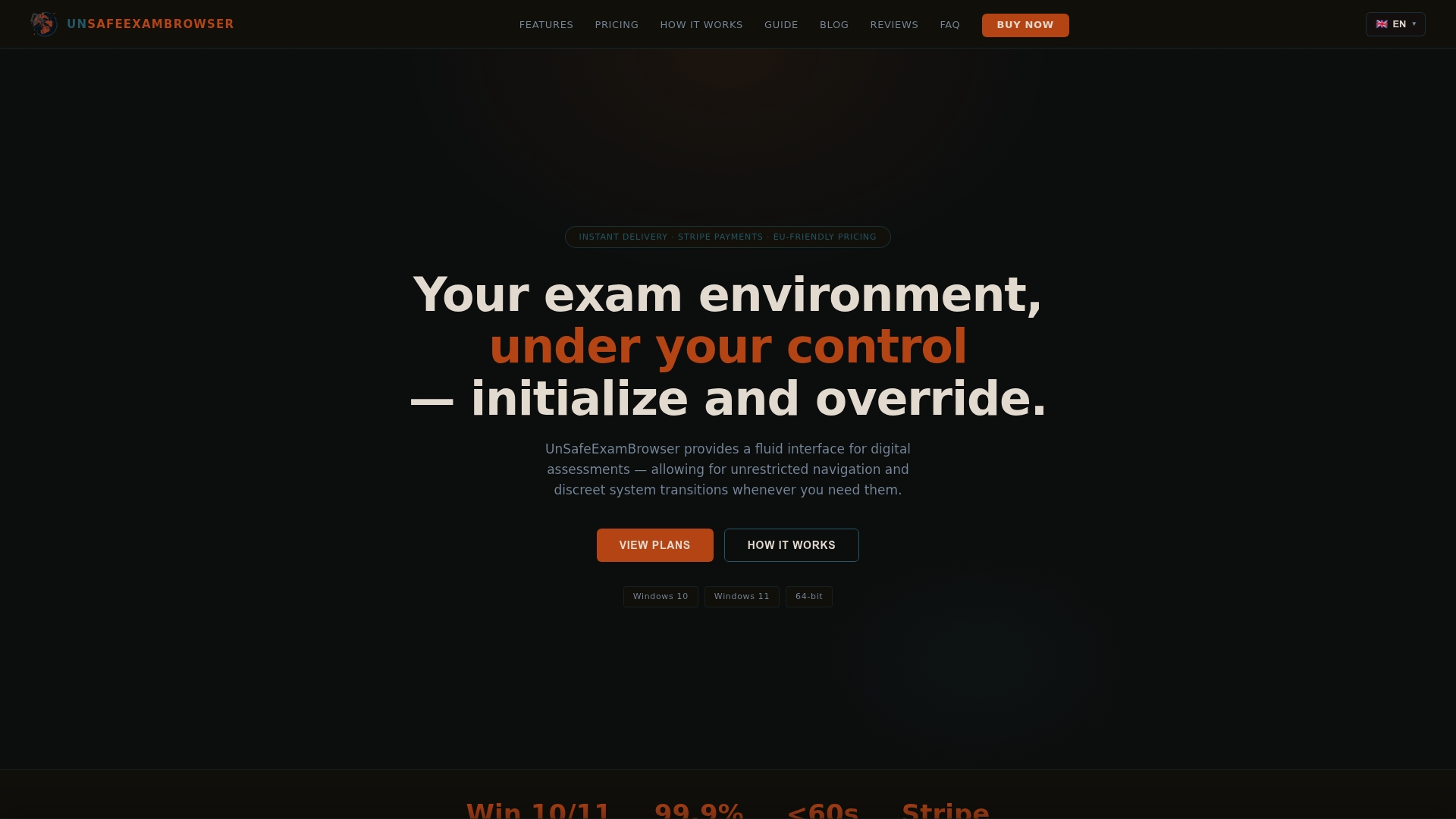
Unsafeexambrowser is a Windows-based application built for digital assessments on Windows 10 and 11 (64-bit). It operates in a locked mode where standard shortcuts are disabled, and users exit by pressing Shift+F12. For students on one-year or lifetime plans, the USEB Companion Browser adds a discreet background layer toggled via Shift+A+S, giving you additional flexibility during sessions. Setup takes minutes: download, enter your license key, and start your exam. No reboot needed.
Pricing starts at €8.99 for one month, with a lifetime option at €59.99 (all prices include VAT). You can review the full licensing and pricing options on the Unsafeexambrowser website, or read the setup and usage guide to understand exactly how the locked mode and taskbar settings work before you commit.
FAQ
Why is my taskbar locked during an exam?
Exam browsers like LockDown Browser and Safe Exam Browser disable taskbar access by design to prevent app switching and cheating. This is a deliberate locked exam mode feature set by your institution, not a software error.
Can I access any apps while in locked exam mode?
Only apps that your institution has whitelisted or that you opened before starting the exam session may be accessible. Tools like Read&Write can run alongside LockDown Browser if launched before the exam begins.
What should I do if the taskbar appears but doesn't work?
A visible taskbar in kiosk mode is informational only. App switching is still blocked even when icons are displayed. Report any unexpected behavior to your proctor rather than attempting to use it.
How do I exit a locked exam browser if I need to?
You exit using a quit password provided by your instructor, or by completing and submitting the exam. Never force-quit the browser, as this can corrupt your submission and trigger a review flag.
Does taskbar access restore automatically after the exam?
Yes. Both LockDown Browser and Safe Exam Browser restore full Windows functionality immediately after you submit and the browser closes. No reboot is required on Windows systems.